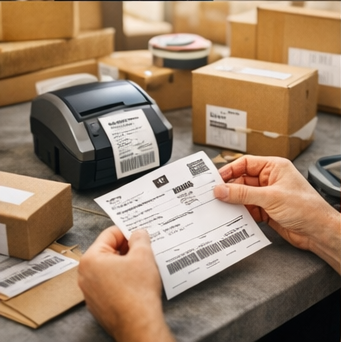
Navigate to Shipments → History (or the DTS screen, depending on your menu layout) to see all labels created within a selected date range.
Use the date range picker at the top to filter shipments:
Each shipment row shows the tracking number assigned by the carrier at the time of label creation.
Note: Tracking numbers are currently displayed for reference. Clicking a tracking number does not navigate to a carrier tracking page within the app — you can copy the number and look it up directly on the carrier's website.
For accounts where tracking status is enabled, Analision pulls carrier status updates and displays them in the shipment list. Possible statuses include:
Live tracking status is not enabled by default for all tenants. It requires a background job that regularly polls carrier APIs for updates — a resource-intensive process that is activated on a per-account basis.
Supported carriers for status updates:
To request tracking status for your account:
Contact your Analision account manager and ask for tracking status to be activated for your tenant. Once enabled, statuses will begin populating from the configured start date (typically the last 15–30 days of shipments).
If tracking status isn't activated for your account, the status column will either be empty or show only the initial Shipment Ready for Carrier state. All other shipment details (tracking numbers, dates, amounts) remain fully visible regardless.
The Shipment History screen is useful for end-of-month reconciliation:
Free forever up to 1,000 orders/month.